
How to Schedule Posts on X: Step by Step
Stop posting at random moments. Schedule posts on X from the composer, find them again, and batch a week of content in one sitting.
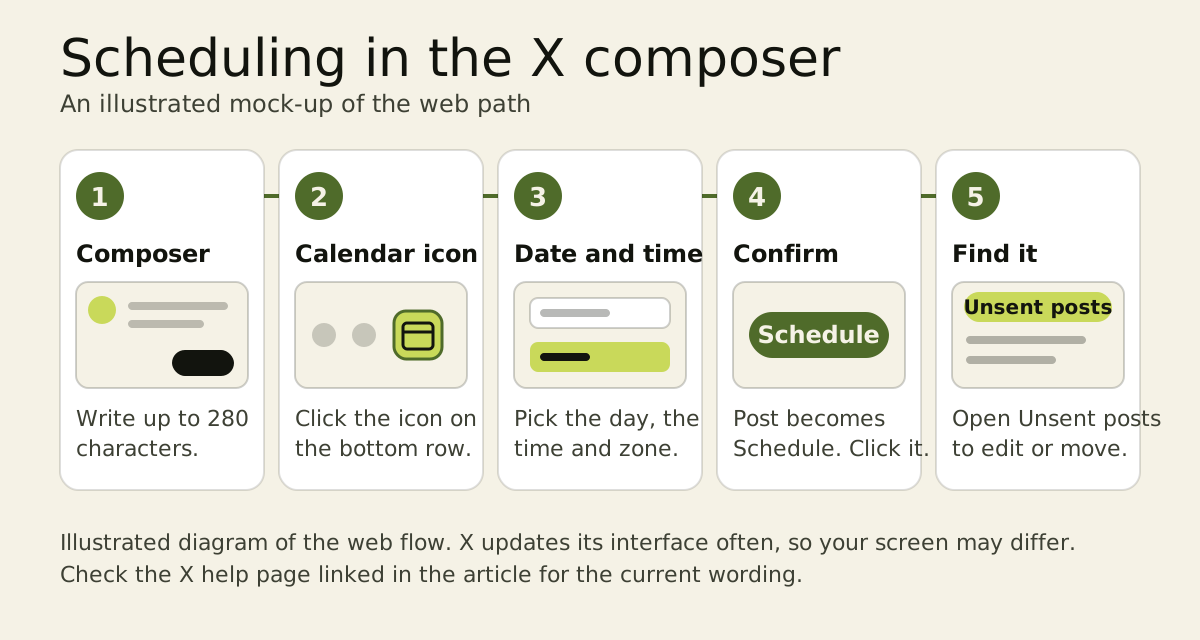
To schedule posts on X, open the composer on x.com, write your post, click the calendar icon, pick a date and time, and confirm. X publishes the post at that moment, even when you are offline, and you can find it again under Unsent posts. Splitting writing from publishing lets you write when your head is clear and publish when your audience is online.
X changes its interface often, so this guide flags anything we could not confirm and links the official help pages. The facts below are current at the time of writing (October 2026).
1. Open the composer on x.com
Scheduling on the web is the most widely documented route. Log in at x.com, check you are on the right account, and open the post composer (the box at the top of your Home feed, or the "Post" button in the sidebar).
Write your post as usual. Standard posts take up to 280 characters. Reports from 2026 say longer posts cannot currently be scheduled, so keep a scheduled post within the standard limit. X's own help pages for X Premium cover the rules for longer posts.
2. Click the calendar icon and choose a date and time
Along the bottom of the composer, click the calendar (schedule) icon. A picker opens:
- Choose the date.
- Choose the exact time.
- Check the time zone shown. Pick the one that matches the moment you intend.
- Confirm.
The main button changes from "Post" to a schedule action. Click it, and the post is queued. You can close the browser afterwards, because X publishes it at the time you chose.
Guides in 2026 do not list the native scheduler as a Premium-only feature, and we found no official X statement either way. Open your composer to see whether the calendar icon appears for your account. If it does, you can use it.
3. Find your scheduled posts
Open the composer again. Scheduled posts and drafts are reported to live under Unsent posts, which you reach from the composer. From there you can:
- Open a post and change its text.
- Move it to a new date or time.
- Publish it straight away.
- Discard it.
Editing options vary between guides and interface versions. When a change matters, a safe approach is to delete the post and schedule a fresh copy.
4. Schedule from your phone
X began rolling out scheduled posts to its mobile app in early September 2026. A designer at X announced it on 5 September, and a Roboin report confirmed the feature in the iOS app while finding no scheduling in the latest Android app it tested.
- On iPhone: open the composer and look for the calendar icon. If it is missing, update the app and try again, since rollouts reach accounts gradually.
- On Android: the feature had not appeared in the version tested. Open x.com in your phone's browser and use the web composer.
5. Know the limits
- One post at a time. Threads scheduled in a single go need X Pro. One guide reports X Pro requires a Premium+ subscription, and the X Pro help page describes its scheduling.
- Time range. Several 2026 guides say you can schedule up to 18 months ahead. X's help pages do not state this, so treat it as an observation.
- Media Studio. X's Media Studio also schedules posts. Its help page says a scheduled post cannot be edited there (delete and recreate it), and that an account at 1,000 drafts and scheduled posts hits a limit.
For the latest official wording, see X's scheduled posts help page.
6. Pick the right time to publish
Scheduling pays off when each post goes out at a good hour. Buffer and Sprout Social both published 2026 studies that put weekday mornings and afternoons ahead of evenings and Saturdays. Our guide to the best time to post on X covers the data and a two-week experiment to find your own slots.
7. Batch a week and schedule posts on X in one sitting
A weekly batch session keeps your calendar full:
- Pick one session. Sunday evening or Monday morning works well. Allow 45 minutes.
- Write 5 to 7 posts. Mix formats: a short opinion, a lesson from your week, a question, a mini story and one useful tip.
- Schedule each post in a slot from your best-times list.
- Leave gaps. Keep one or two empty slots for reactions to news in your niche.
- Block a reply window. Scheduled posts reach people when you are away, and replies grow your reach when you are present. Our guide to growing on X with replies describes a 30-minute routine.
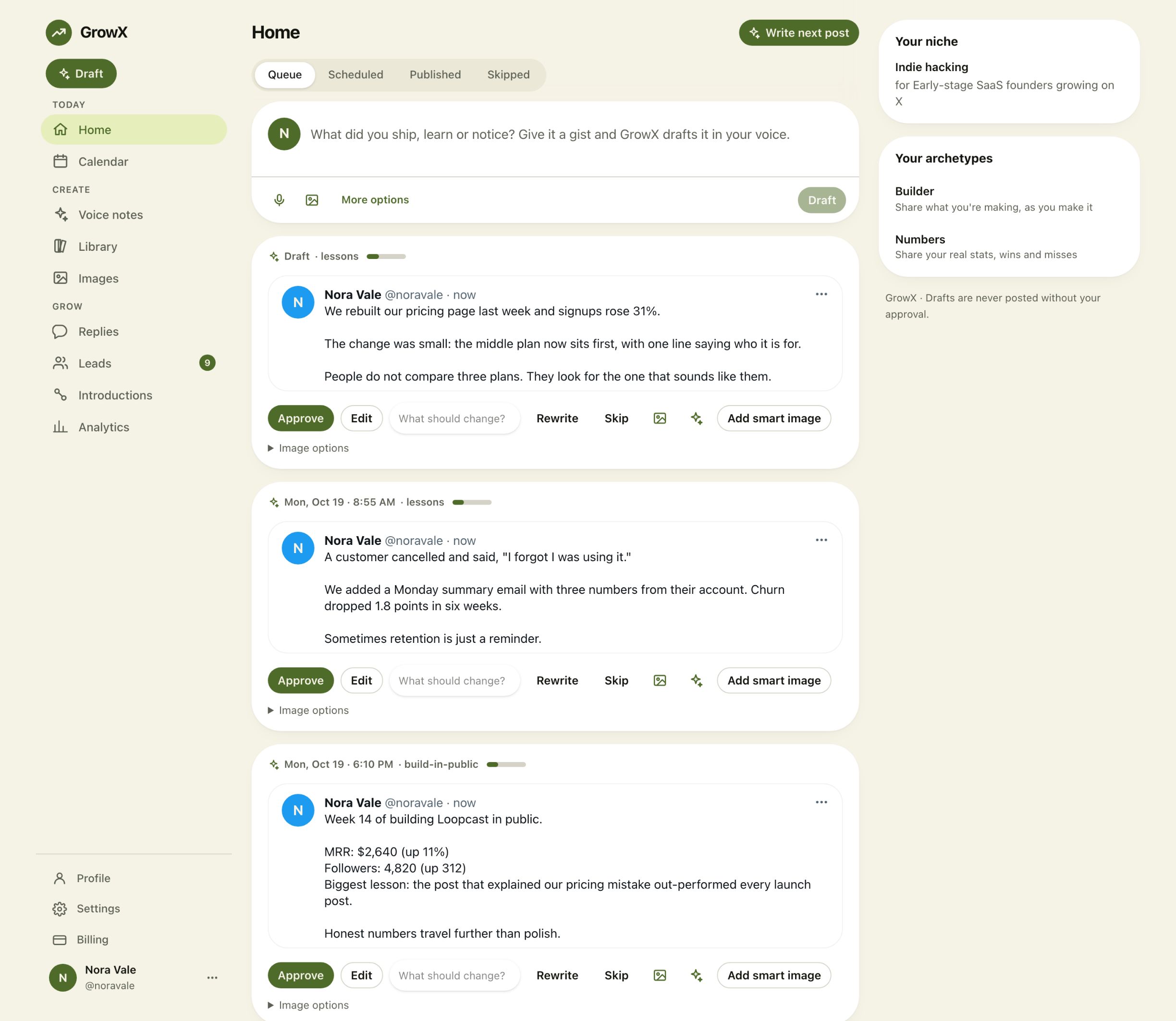
If you want a tool to shorten the writing half of the session, GrowX drafts posts in your voice and lines them up in a queue. You approve, edit or rewrite each one, and the ones you approve are placed into your calendar slots.
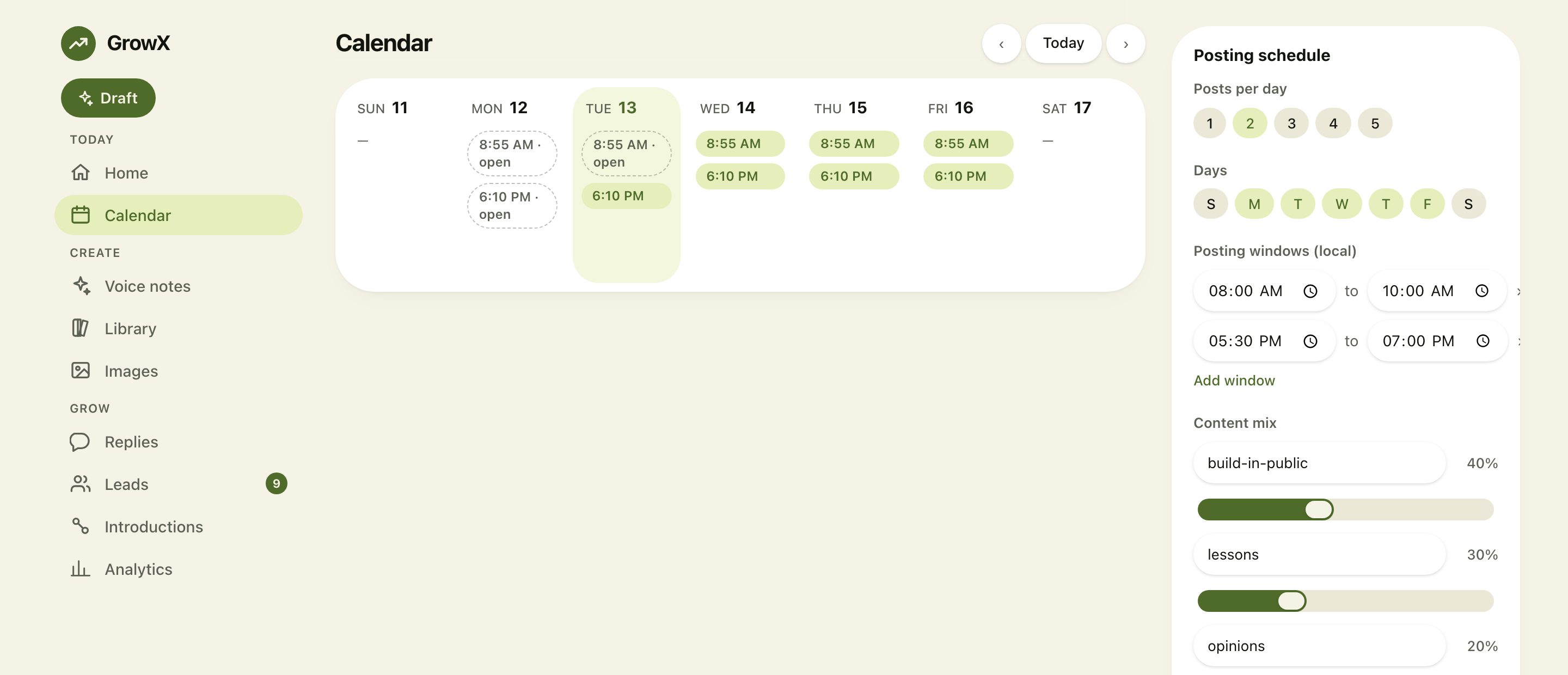
Approved posts appear on a week calendar built from the posting windows, days and number of posts a day you choose, so a full week takes minutes to review.
Write each scheduled post yourself or review every draft before it goes into the queue. X's automation rules cover automated activity, so read them if you use any scheduling tool, and publish unique posts you have checked.
Troubleshooting and expectations
Scheduling delivers consistency. It places your posts in good slots, and the writing and replies still do the growing.
- No calendar icon. Update the app, try x.com in a desktop browser, or check X's help page for your account type.
- Post did not appear. Look in Unsent posts to see whether it was saved. Check the time zone you picked.
- A long post will not schedule. Longer posts reportedly cannot be scheduled on the web yet. Post it live, or shorten it.
- A thread needs scheduling. Use X Pro, or schedule the opening post and publish the follow-ups at the time yourself.
- Posts feel stale. Leave room for live moments. Scheduled posts about news can age quickly, so review your queue each morning.
Frequently asked questions
Do I need X Premium to schedule posts?
Several 2026 guides say the web scheduler is free, and we found no official statement that it requires a subscription. X Pro, which handles scheduled threads, is reported to need Premium+. Check your own composer.
Can I schedule posts from the X app?
Scheduling began rolling out to the iOS app in September 2026, and the Android app tested did not show it. The web composer at x.com works in a phone browser too.
Where do I find my scheduled posts?
Open the composer and look for Unsent posts. If you use Media Studio, its Schedule view lists posts scheduled there.
Can I edit a scheduled post?
Reports differ by interface. If an edit option is missing, delete the post and schedule a new version.
Can I schedule a thread?
The native composer schedules one post at a time. X Pro handles scheduled threads, according to X's help material.
Related articles
- The Best Time to Post on X
- How to Grow on X with Replies
- How to Grow on X in 2026
- How to Download Your X Archive
Want the batch session to take 15 minutes? GrowX learns your voice from your past posts, drafts posts for one-tap approval, turns a one-line idea or voice memo into a finished post, and schedules the posts you approve.