
How to See Who Unfollowed You on X (2026 Guide)
X sends no unfollow alert, so here are three safe ways to spot who left, plus what actually moves your follower count.
X has no built-in way to see who unfollowed you and sends no notification when someone leaves. You can still find out by checking a profile for the "Follows you" label, comparing two saved copies of your followers list, or using a trusted third-party tracker. This guide walks through each method and shows how to keep your account safe while you do it.
1. Know what X shows you
X notifies you when someone follows you. It sends nothing when someone unfollows, and at the time of writing (October 2026) there is no unfollower list in the app or on the web. Every method below is a workaround.
Your total follower count is the one signal X always gives you. When it drops, someone left, was suspended or deleted their account.
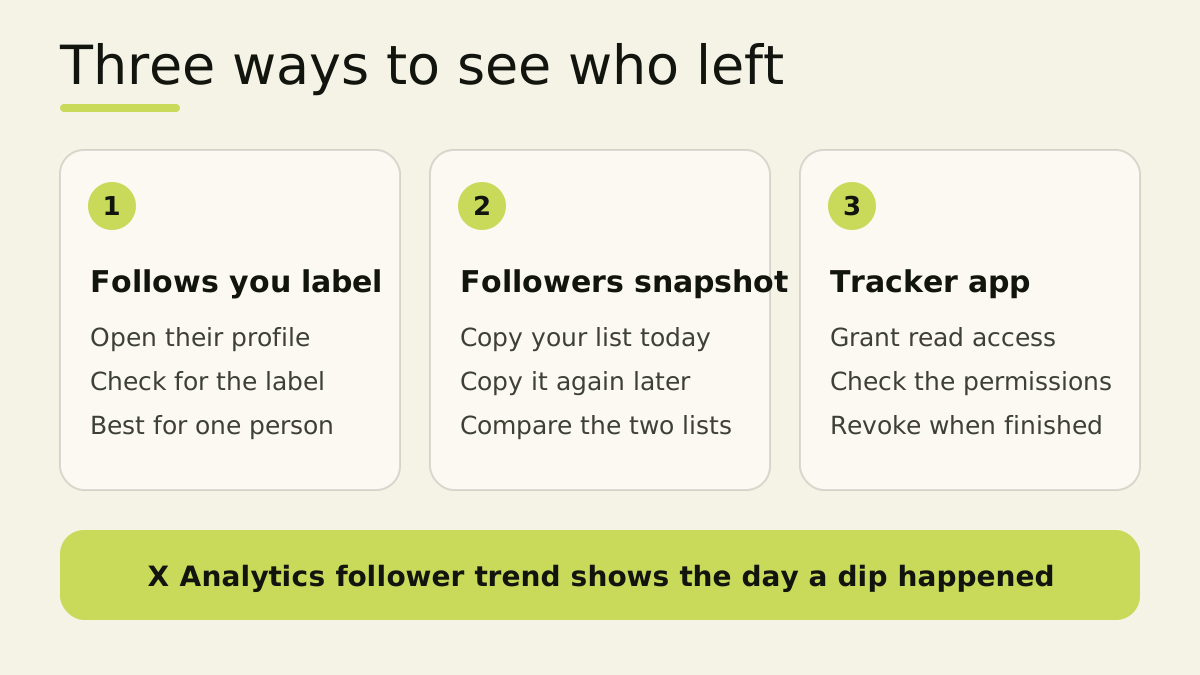
2. Check one profile for the "Follows you" label
This is the quickest check when you wonder about one specific person.
- Open that person's profile on x.com or in the X app.
- Look near their name and bio, next to the follow button.
- If you see a "Follows you" label, they still follow you. If the label is missing, they have unfollowed you (or never followed you).
This works well for a handful of accounts, such as the people you care about most.
3. Compare your followers list over time
A dated snapshot of your followers lets you spot every change.
- On desktop, open your profile and click Followers.
- Scroll to load the list, then copy the usernames into a spreadsheet or text file.
- Save it with today's date.
- Repeat a week or two later and compare the two lists. Names in the old list and missing from the new one are your unfollowers.
A spreadsheet "find duplicates" or a simple lookup formula does the comparing for you. This method is free and private. It takes patience once your list passes a few thousand people.
4. Track your follower count in X Analytics
If your account has access to X Analytics (the full account dashboard is part of X Premium at the time of writing), open it from the More menu and look at the followers trend. A daily dip points to the day people left, and you can line it up with what you posted that day.
Analytics shows totals and trends. It does not list names. Menu names change, so search the X Help Center for "Analytics" if the option has moved.
5. Use a third-party unfollow tracker safely
Several apps and browser extensions track followers and flag who dropped off. Some have been affected by changes to X's data access, so test one on a small trial before you rely on it.
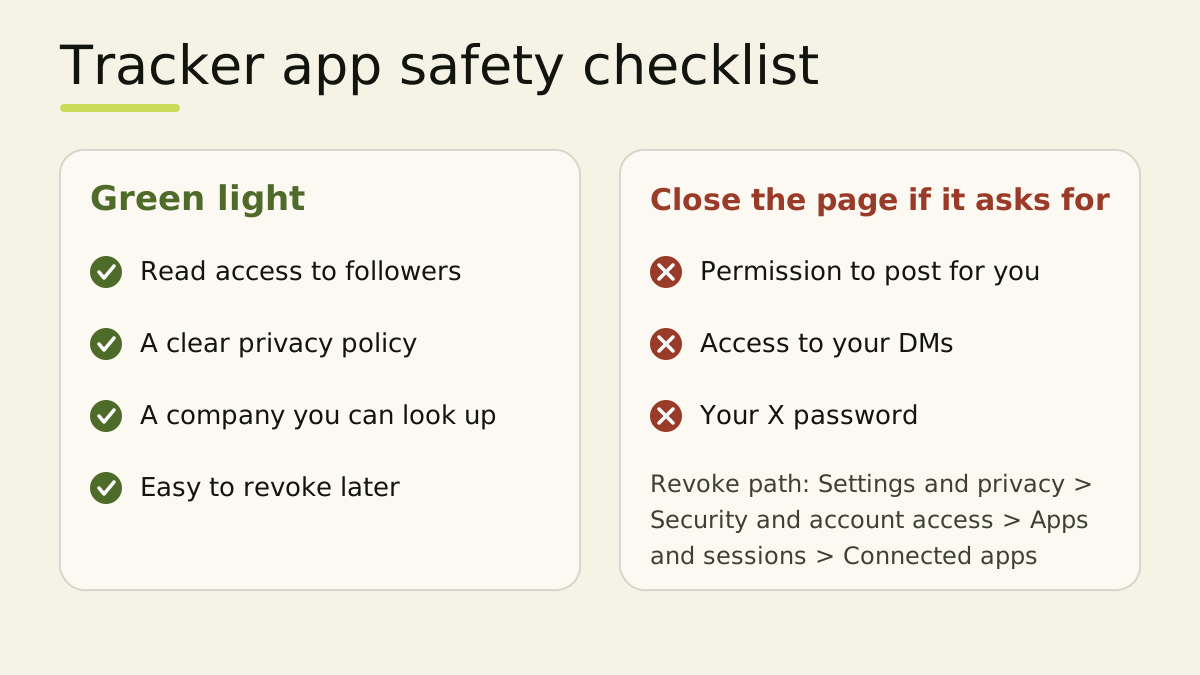
Protect your account with these checks:
- Read the permission screen. When an app asks you to connect your X account, the permissions list is on that screen. Tracking unfollows needs read access to your followers.
- Say no to write and DM access. Posting on your behalf or reading your direct messages has no role in an unfollow tracker. If the app asks for them, close the page.
- Prefer apps with a clear privacy policy and a company name you can look up.
- Keep your password to yourself. A genuine app uses X's own login screen.
How to revoke an app's access
- Open Settings and privacy (on mobile, tap your profile picture first).
- Go to Security and account access, then Apps and sessions.
- Open Connected apps, pick the app and choose Revoke app permissions.
Menu wording shifts between updates. X describes the current steps on its third-party apps help page.
6. Keep a healthy perspective on unfollows
A few unfollows every week are normal for any account. People tidy their following list, accounts get suspended, bots get cleaned out, and interests change. A comparison shows who left, and the reason stays private.
Follower count rises when you give people a reason to follow:
- Post consistently with a clear topic, so a new visitor knows what they will get. Our guide on how to grow on X covers the full approach.
- Reply on bigger accounts in your niche. Each thoughtful reply puts your profile in front of a fresh audience. See how to grow on X with replies.
- Polish your profile. A clear photo, a one-line bio and a pinned post convert visitors into followers.
- Watch the trend across weeks. One bad day carries little meaning.
7. Track what brings followers in
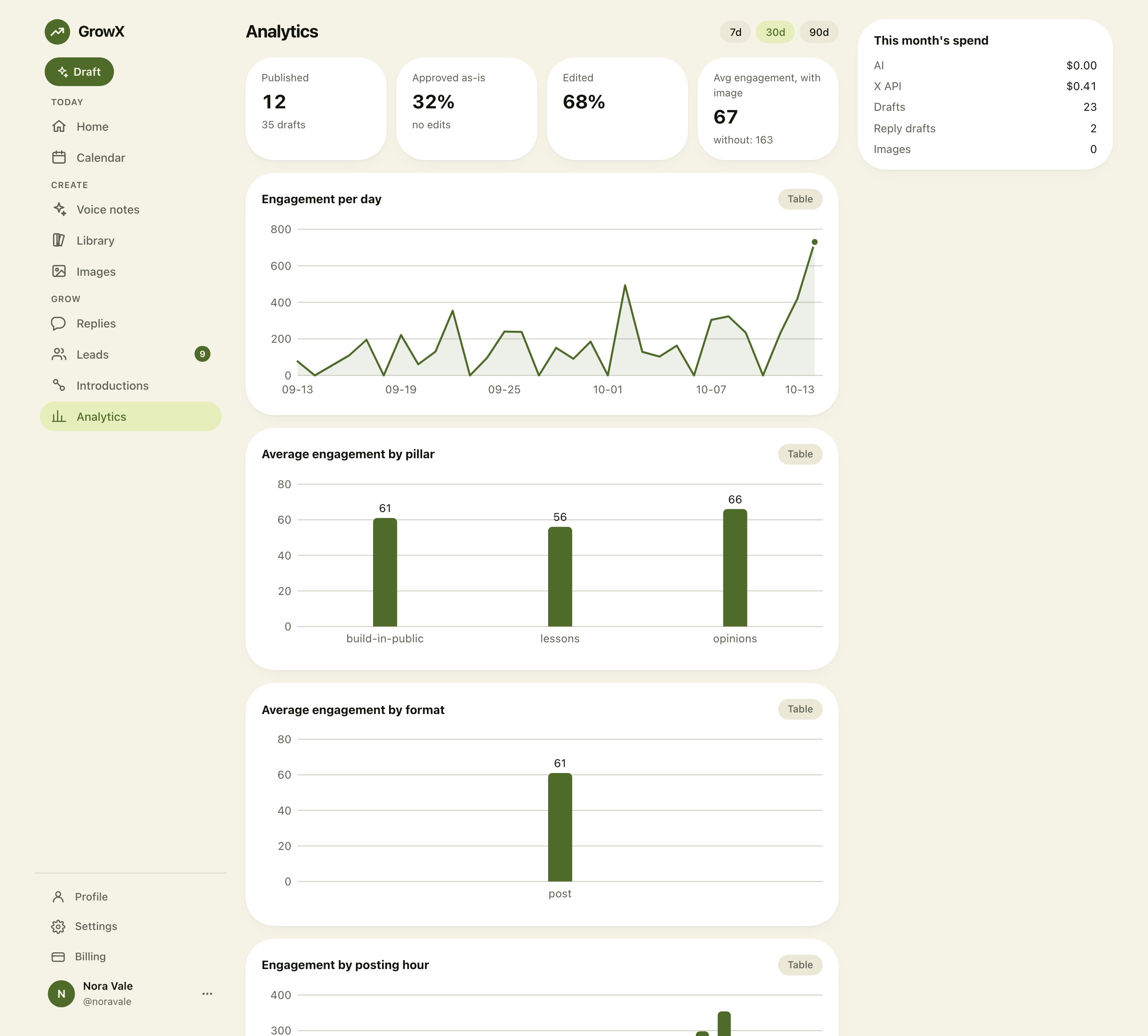
Once you know how many people left, the useful question is which posts bring new people in. GrowX's analytics page shows your engagement by day, by topic pillar and by format over 7, 30 or 90 days, so you can repeat what works.
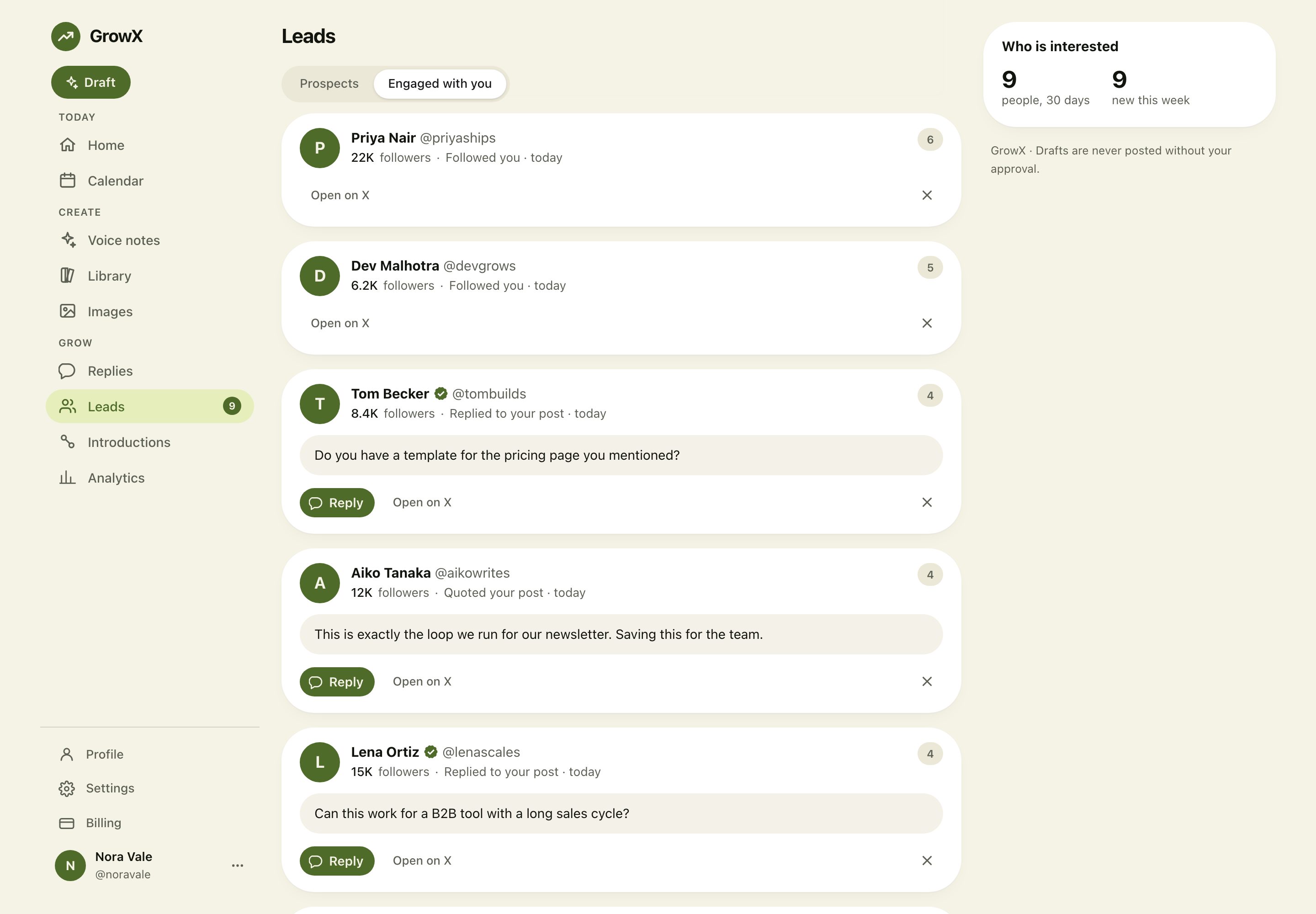
The Leads screen lists the people who followed you, replied to you or quoted your posts today, with a Reply button beside each. A follower who just arrived is a good moment for a friendly hello.
Frequently asked questions
Does X notify you when someone unfollows you?
No. X notifies you about new followers only. The follower count and the "Follows you" label are the two clues X gives you.
Is it safe to use unfollower apps?
It is safe when the app asks for read access only, publishes a privacy policy and lets you revoke access easily. Skip any app that asks to post for you or read your DMs.
Can I see who unfollowed me in X Analytics?
Analytics shows your follower trend over time. It lists totals and leaves out names, so pair it with a followers list snapshot to find who left.
Why did my follower count drop without anyone unfollowing?
Suspended, deactivated and removed accounts all leave your follower list. Those drops are routine and often show up in waves.
Should I unfollow people who unfollowed me?
Follow accounts whose posts you enjoy and let the rest go. Steady posting and good replies grow your count far more reliably than follow swaps.
Related articles
- How to Grow on X in 2026
- How to Grow on X with Replies
- How to Get Verified on X
- The Best Time to Post on X
Spend your time on growth
Unfollows are easy to check and easy to overthink. GrowX learns your voice, turns a one-line idea into a finished post and lets you approve drafts in one tap, so your time goes into the posts and replies that bring new followers.